



There’s a moment most travelers know well — standing in front of a Japanese, Thai or Georgian menu, an unfamiliar plant in a guesthouse garden, or a street sign in Cyrillic in Serbia, trying to puzzle out what you’re actually looking at. For most of human history the answer was “ask a local.” For the last few years, the answer has been “point your phone.”
Within the next few months, the answer will be “just look at it.” Google and Samsung announced at Google I/O 2026 (in May) that their first Android XR smart glasses will launch this fall, built in collaboration with Gentle Monster and Warby Parker, with Gemini-powered real-time translation of menus, signs, and speech projected directly into your line of sight — no phone required. The frames work with both Android and iOS.
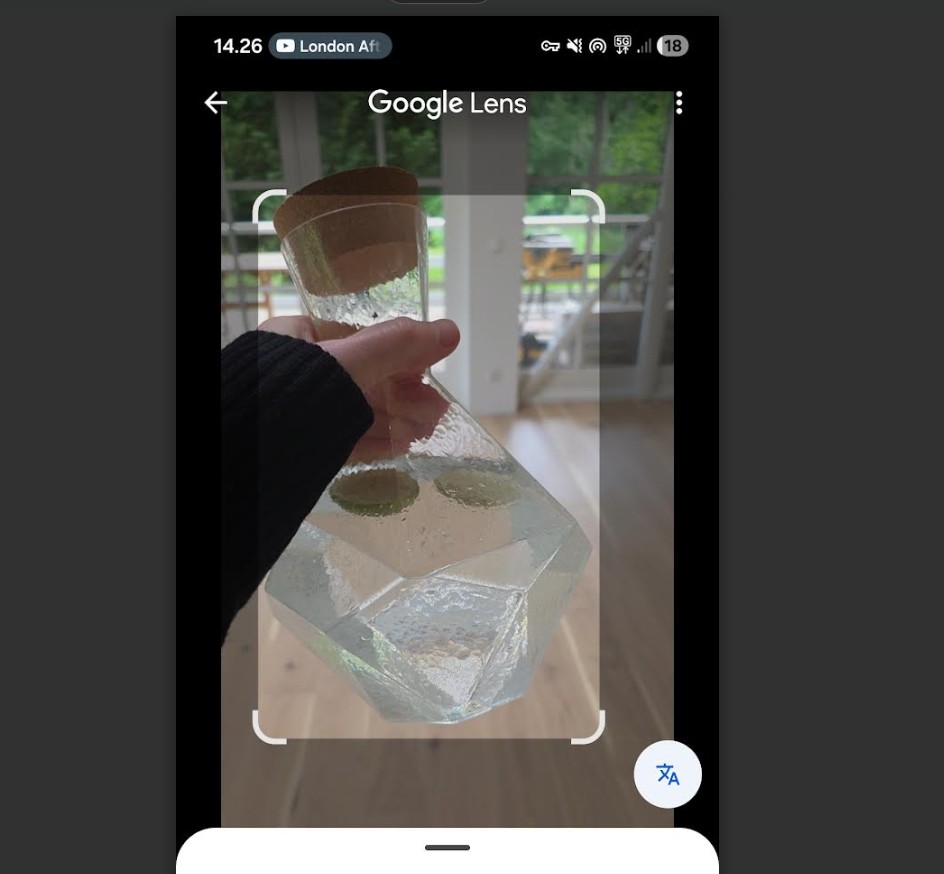
At Locals Insider, we actually use Google Lens for something slightly different — and it’s become one of our most-used apps on the road. We point it at nice, interesting objects we notice in hotels and restaurants: a beautifully made wooden side table, a ceramic vase we’ve never seen before, a pendant lamp that catches the light just right, an upholstered chair in an unusual color that would be nice to have at home – things like that. Lens identifies the piece (or something close to it), tells us the designer or brand, and often surfaces where to buy it. It’s design discovery as a side effect of travel — you stop just admiring things and start knowing what they are. That’s the unsexy but genuinely practical reason the app earns its space on our home screens.
The same job is done by ChatGPT, by the way, but Google is more commercially focused, so that products are easier to find. When we tested, these two were fairly similar.
The brain behind that technology is the same one running on hundreds of millions of phones today: Google Lens, which now processes more than 20 billion visual searches per month in 2026 — by far the largest visual search engine on the planet. Will we still use old good Google Lens with the new tech glasses? Our Locals Insider review covers what Google Lens does, how to use it (yes, on iPhone too — despite what most articles claim), the surprisingly long list of things it can identify, and the best alternative if you’re on iOS.
What is Google Lens
Google Lens launched in October 2017 as a preview feature on the Google Pixel 2, then rolled out as a standalone Google Play app in June 2018. It’s powered by an AI image-recognition system (convolutional neural networks, for the technically inclined) that breaks down what your camera sees into colors, edges, shapes, textures, and unique patterns, then matches them against Google’s vast image and web index to identify what’s in front of you.
Over the past two years it’s evolved from a simple object-matcher into a full AI-powered visual assistant, with AI Overviews now summarizing what you’re looking at directly inside the results.
On Android, Lens is available as a standalone app from the Google Play Store with 1 billion+ downloads and a 4.7/5.0 rating from 2.82 million reviews — putting it in the top tier of utility apps globally. On iOS, there’s no standalone Lens app, but the same functionality is built into both the Google app and the Google Photos app, which iPhone users can download for free from the App Store.
How Google Lens Works
The way you access it depends on your device:
- Android: Open the standalone Google Lens app, or tap the Lens icon inside the Google app, Google Photos, or Chrome.
- iPhone (Google app): Open the Google app, tap the Lens icon in the search bar, grant camera access, and start pointing.
- iPhone (Google Photos): Open any image, tap the Lens icon at the bottom, and Lens analyzes the photo.
You can either point your camera at something in real time or scan an existing image from your phone’s library. The most useful real-world applications include:
- Translation: Point your camera at a foreign menu, sign, or document, and Lens overlays a translation directly on the image — particularly useful for non-Latin scripts (Cyrillic, Arabic, Chinese, Japanese, Korean, Thai).
- Landmarks and places: Identify buildings, monuments, statues, and points of interest as you walk past them.
- Shopping: Scan a barcode or photograph a product, and Lens shows you where to buy it online and at what price.
- Plants and animals: Identify species of plants, insects, birds, mammals, and household objects — the clearer your photo, the better the match.
- Text capture: Snap a printed page or handwritten note and copy the text directly to your phone, computer, or any signed-in Chrome browser.
How to Use Google Lens in 5 Steps
Here’s the practical flow with a real-world scenario. You’re in a small ramen shop in Shinjuku, the menu is entirely in Japanese with handwritten kanji, and the server doesn’t speak English. The classic traveler’s dilemma.
- Open Google Lens. On Android, tap the standalone Lens app or the Lens icon inside the Google app. On iPhone, open the Google app and tap the camera icon in the search bar.
- Point your camera at the menu. Hold the phone steady about 20-30 cm from the page — close enough that the text fills most of the frame.
- Tap and hold on a specific dish (rather than letting Lens auto-detect the whole page). Auto-detection often mistranslates context on shorthand menus; isolating one line gives dramatically better accuracy.
- Choose “Translate” from the action buttons that appear. Lens overlays an English translation directly onto the original Japanese text — you can read both at once.
- Repeat for items that look interesting and order with confidence. For the dish you actually pick, you can also tap “Search” to see photos of what it typically looks like (useful when “miso ramen” turns out to mean five very different things depending on the region).
Total time per menu item: about 10 seconds. Works the same way for street signs (Cyrillic in Belgrade, Arabic in Marrakech or Egypt), product labels at foreign supermarkets, museum placards, and printed bus schedules.
Pricing: Is Google Lens Free?
Yes — 100% free, with no in-app ads and no subscription tier. Like Google’s other consumer products (Translate, Maps, Photos, Earth, Authenticator), Lens is supported by Google’s broader advertising business rather than direct user payments. You’ll need to be signed into a Google account to use it, and an internet connection is required for most features — visual recognition runs on Google’s servers rather than your device. This is consistent across both Android and iOS implementations. There’s no premium upgrade and no feature paywall.
Google Lens Ratings & Reviews: Is It Good?
The numbers are unambiguous. Google Lens has been downloaded over 1 billion times on Google Play and holds a 4.7/5.0 rating from 2.82 million reviews — making it one of the most-rated utility apps in existence. The app now sees around 45 million downloads per month.
Reviewers consistently praise the speed and accuracy of identification, particularly for plants, animals, and landmarks. The translation feature draws frequent praise from travelers — pointing a camera at a foreign menu and seeing it instantly overlay in English remains genuinely magical even after years of using it. Power users also highlight the text-capture and copy-to-computer features as time-savers for scanning printed documents.
The most common criticisms involve occasional misidentification in poor lighting, narrow shopping sources in certain regions, and reliance on an internet connection for most features. Lens doesn’t work offline in any meaningful way — something to keep in mind if you’re traveling without reliable cellular data.
One Google Play reviewer, Gof Thompson, wrote: “Lens has successfully helped me identify dozens of buildings, towns, and gardens all around Europe in photos I took over 20 years ago, but have since lost my diary record. A very useful, time-saving app.”
Insider tip: When you’re scanning a foreign menu, tap and hold to highlight the specific dish you’re looking at rather than letting Lens auto-detect the whole page. The translation accuracy is significantly better when you isolate one item — auto-detection often mistranslates context (especially with shorthand restaurant menus that omit verbs and grammatical particles). Same trick works for signposts where you only care about one line of text.
Google Lens Alternative for iOS Users: Apple Visual Intelligence
While iPhone users can use Google Lens through the Google app, Apple has built its own native alternative — and as of 2026 it’s genuinely good. Apple Visual Intelligence is part of Apple Intelligence and launched with iOS 18.2 in late 2024. It’s currently exclusive to the iPhone 16 series and iPhone 15 Pro/Pro Max (older models don’t support it), and it’s accessed by long-pressing the Camera Control button on iPhone 16 models or via the Action button on the iPhone 16e.
Visual Intelligence can identify places, summarize and translate text, identify plants, animals, and insects, add calendar events from posters and flyers, call phone numbers it sees on signs, and open URLs from physical text. It’s built into the hardware in a way that Google Lens on iOS isn’t — meaning it works faster and feels more integrated with the rest of iOS.
The trade-offs: Visual Intelligence requires a newer iPhone, only works in English (with limited additional language support rolling out), and doesn’t have the same depth of shopping or product database that Google Lens does. For pure travel use cases (translation, landmark identification, plant ID), Visual Intelligence is excellent. For shopping or detailed product research, Google Lens still wins.
For broader travel-tech context, our roundup of the best AI travel planning tools and apps for 2026 and our guide to Google Maps alternatives for navigation cover the visual and routing tools that pair well with Lens on a real trip.
Google Lens Offers
Google Lens has no formal promotional program — it’s already free with no paid tier — but a few practical “value plays” are worth knowing:
- Already installed on most Android phones: Lens comes pre-installed on the vast majority of Android devices via the Google app and Google Photos. If you’re on Android, you almost certainly already have Lens without needing to download anything separately.
- Integrated into Google Chrome: Lens is built into Chrome on both desktop and mobile — right-click any image on a webpage and “Search image with Google Lens” runs visual search without leaving the browser. Useful for shopping, identifying images sent to you, or fact-checking visual content.
- Works with old photos in Google Photos: Open any photo in Google Photos (even one from 20 years ago) and the Lens icon at the bottom will run visual search on it. Useful for identifying buildings or places you photographed years ago but never labeled.
- No account is technically required: While signing in unlocks more features, basic visual search through the Google app on iOS works without a Google account login.
- Free language support: Lens translates more than 100 languages at no cost, including all major travel destinations (Japanese, Chinese, Korean, Thai, Arabic, Russian, Hebrew, Hindi, and most European languages).
Compared to dedicated translation apps that charge for premium features or offline support, Lens delivers most of the same value as a free byproduct of Google’s broader business model. That’s the most honest “bonus” — you’re getting $100+/year worth of utility for nothing. And once the Android XR glasses launch this fall, that same Lens technology will move from your phone screen onto your face — no extra subscription required.